Markdown Plus formats local Markdown inside Chrome. It also gives you a file browser, an outline and tools for diagrams, editing and sharing. You can follow the guide in order or jump straight to a task.
These screenshots show the current extension interface with demo documents and states. Interface labels match this page’s language; example document content stays in English. Select an image to see it full size. Chrome’s own dialogs follow your browser language.
Open your first document
Start here if you have never used the extension. Once a Markdown file opens in the reader, you can try everything else in this guide.
- Open the official Chrome Web Store listing above. Select Add to Chrome, then Add extension. Use Chrome 116 or newer.
- Open
chrome://extensionsin the address bar, find Markdown Plus, select Details, then enable Allow access to file URLs. This lets the extension read local files you open. - Drag a local Markdown file into a Chrome tab, or use the Open file shortcut below. Supported direct entry points are
.md,.markdown,.mdownand.mdc. Reload any tab that was open before granting access. - Pin Markdown Plus from Chrome’s Extensions menu. Select its toolbar icon to open the popup, where Reader, Editor, Plugins and Recent group the everyday controls.
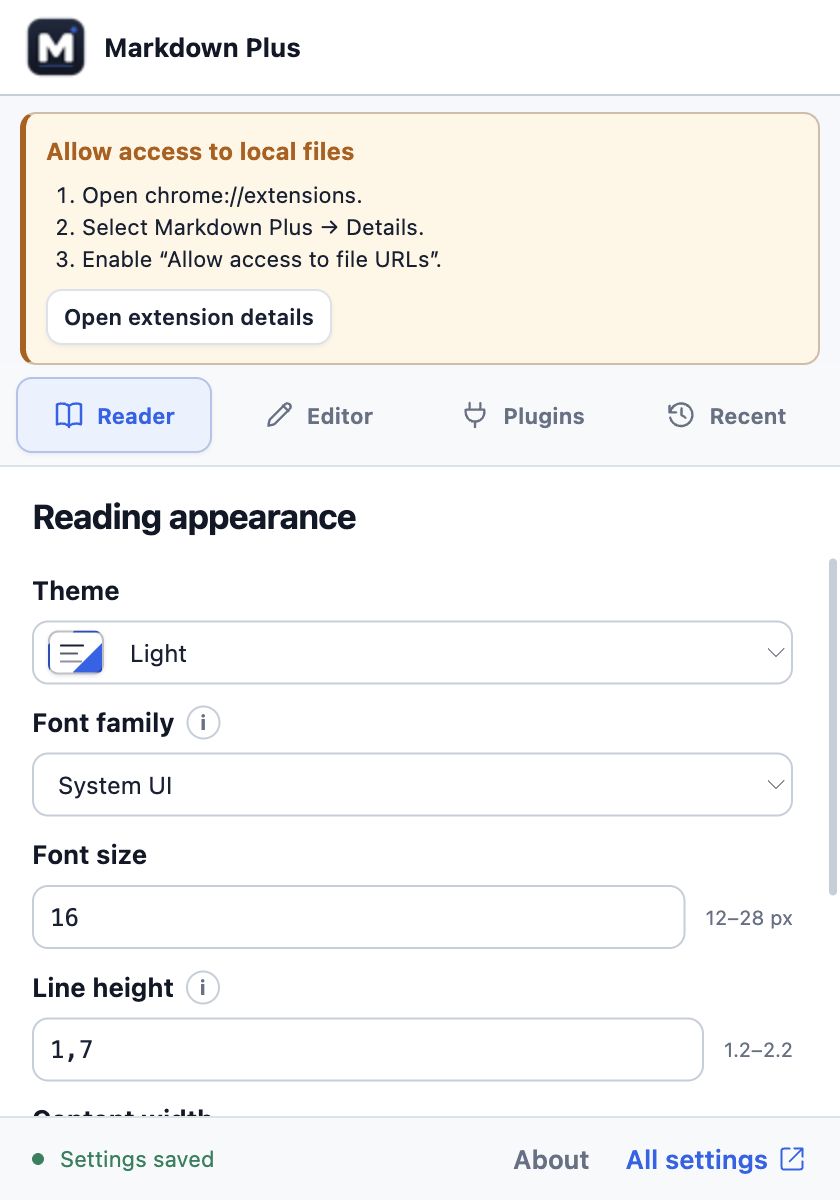 View full-size screenshot
Try it: a small document, lots to explore
Download markdown-plus-tour.md, save it on your computer and open it in Chrome. It includes headings, tasks, a table, code, an alert, a formula and a Mermaid diagram. Use it as you work through the next chapters. The example content is in English.
Find your way around
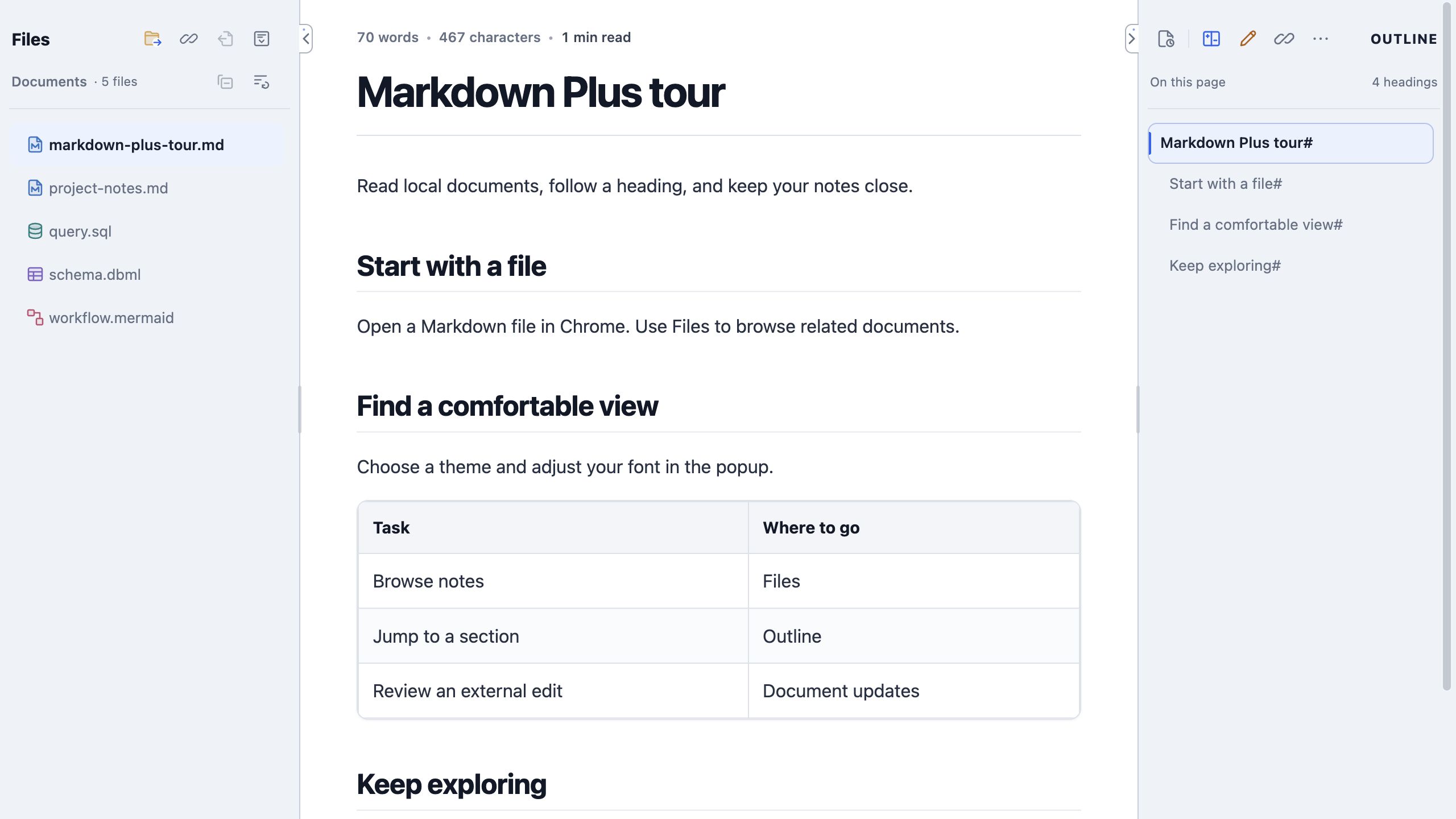
The document stays in the center. Files sits on the left; Outline and document actions sit on the right. Hide or resize the side panels when you want more reading space.
 View full-size screenshot
A quick map of the reader
- Files — open another document or folder.
- Document — read your formatted Markdown.
- Outline — jump straight to a heading.
- Actions — update, edit, print and export.
Open a folder as a workspace
In Files, choose Open folder…, select the folder containing your notes or project docs, and grant access when Chrome asks. Expand a folder and select a supported file. The workspace may need permission again after reopening Chrome.
After adding, removing or renaming files, use Refresh file list. It rescans the tree; it does not reload the open document. Missing files? Check .gitignore exclusions and scan limits in All settings → Files & Workspace, then refresh.
Select a heading in Outline to jump to that part of the document. Headings come from your Markdown source. In a narrow window, look in the document actions overflow menu for commands that no longer fit.
| File type | How to open it |
|---|---|
.md · .markdown · .mdown · .mdc | Directly in Chrome, or through Files. |
.txt · .sql · .dbml · .mermaid | Open a Markdown file first, then select the file in Files. |
| Images | PNG, JPG/JPEG, GIF, WebP, AVIF, BMP, ICO, APNG and SVG. Open through Files. |
TXT is shown as plain text. SQL and DBML can use syntax highlighting; DBML is a source viewer, not a database diagram generator. These formats are read-only here. Standalone Mermaid adds a diagram/source view; Markdown remains the format with Outline, experimental editing and document export.
Read comfortably
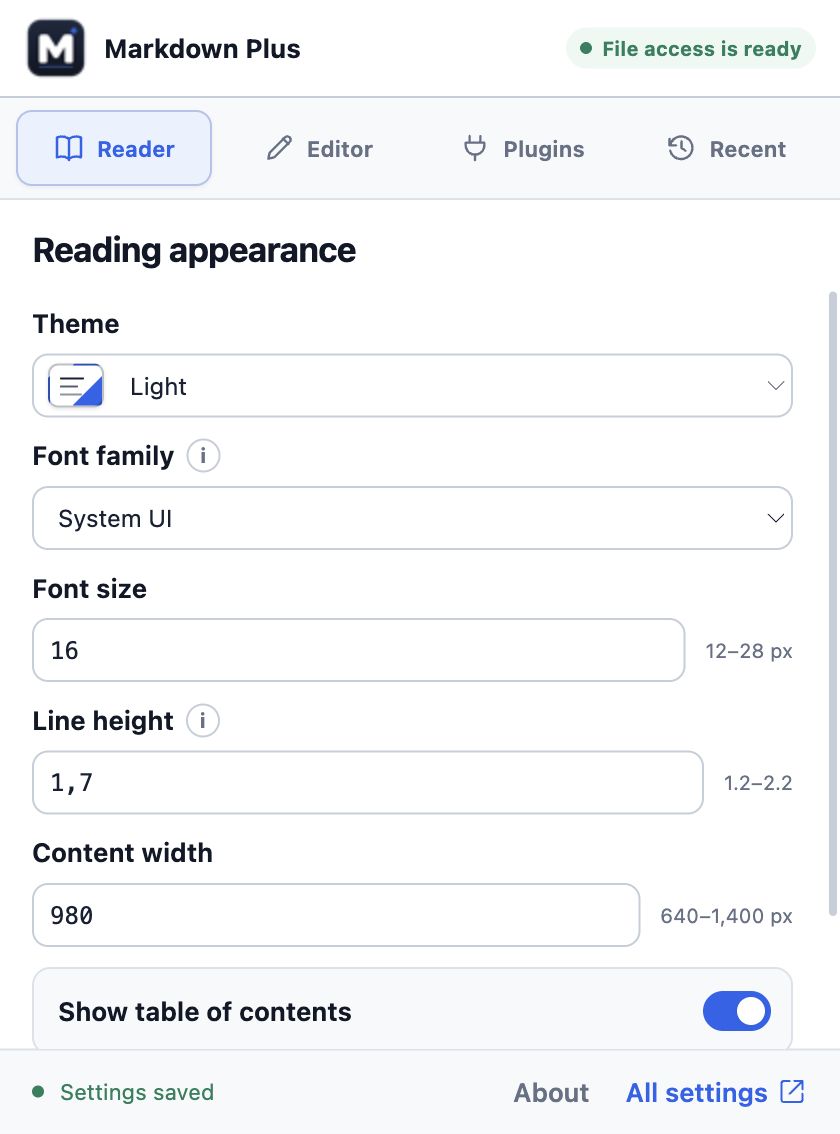
Open the popup → Reader. Start with a theme, then adjust the text and page width until a long paragraph is easy to read. These preferences apply across your documents.
 View full-size screenshot
Text that suits you
Choose a font family, font size from 12–28 px, and line height from 1.2–2.2. Font presets use fonts installed on your computer, with fallback fonts if a preset is unavailable.
Room for the document
Set content width from 640–1400 px and choose whether to show Outline. In General settings, you can hide document statistics or change scrollbar visibility. Statistics include words, characters with spaces and estimated reading time.
Need a fresh start? Reset reader UI restores the default theme selection, typography and layout. To change the interface language, go to All settings → General → Interface language. Document text is never translated.
Use Back to top to return to the beginning of a long document. Outline links navigate within the file; they do not change its source. Adjusting reader preferences changes the presentation, not the Markdown you saved.
Discover rich Markdown
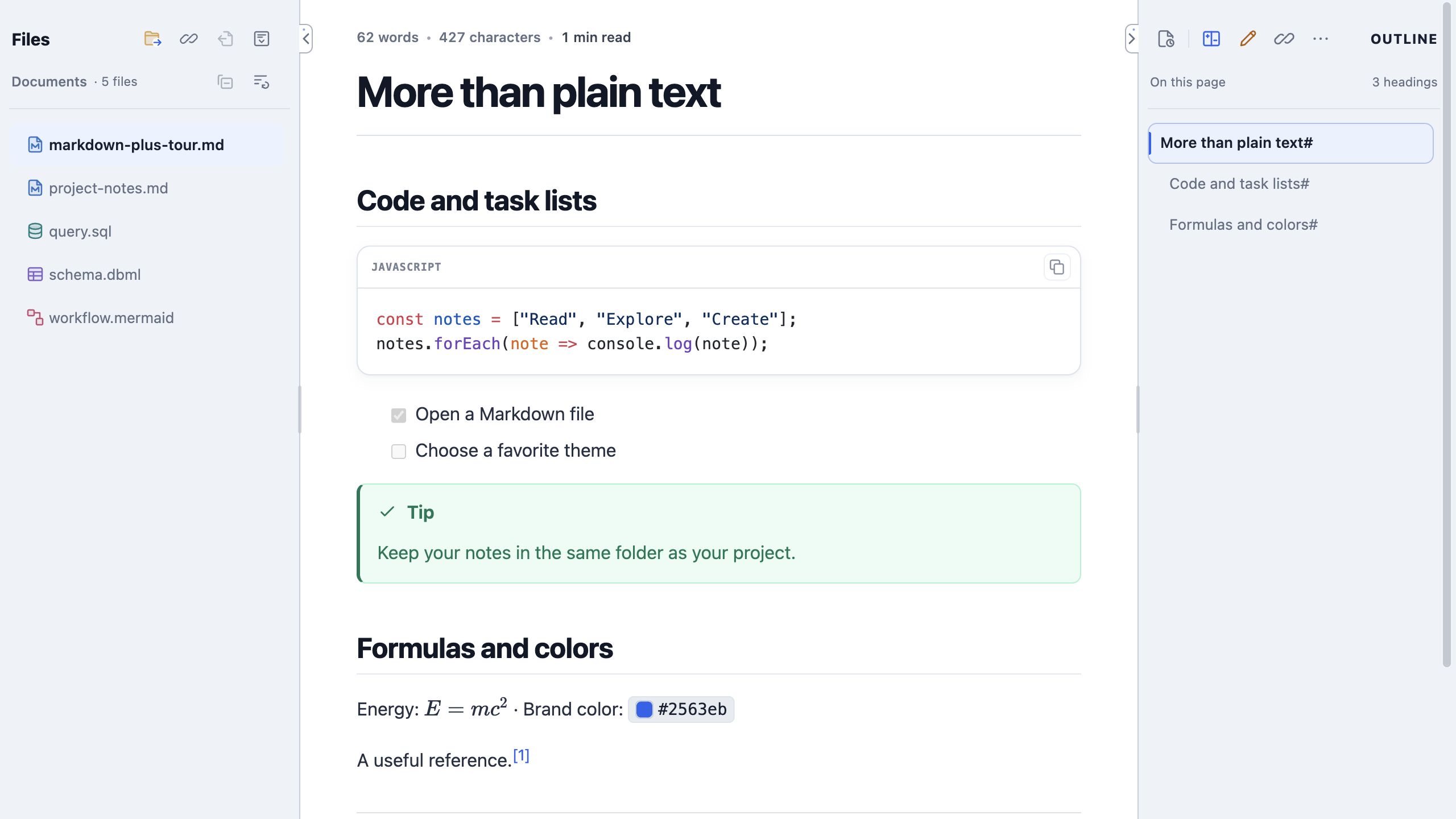
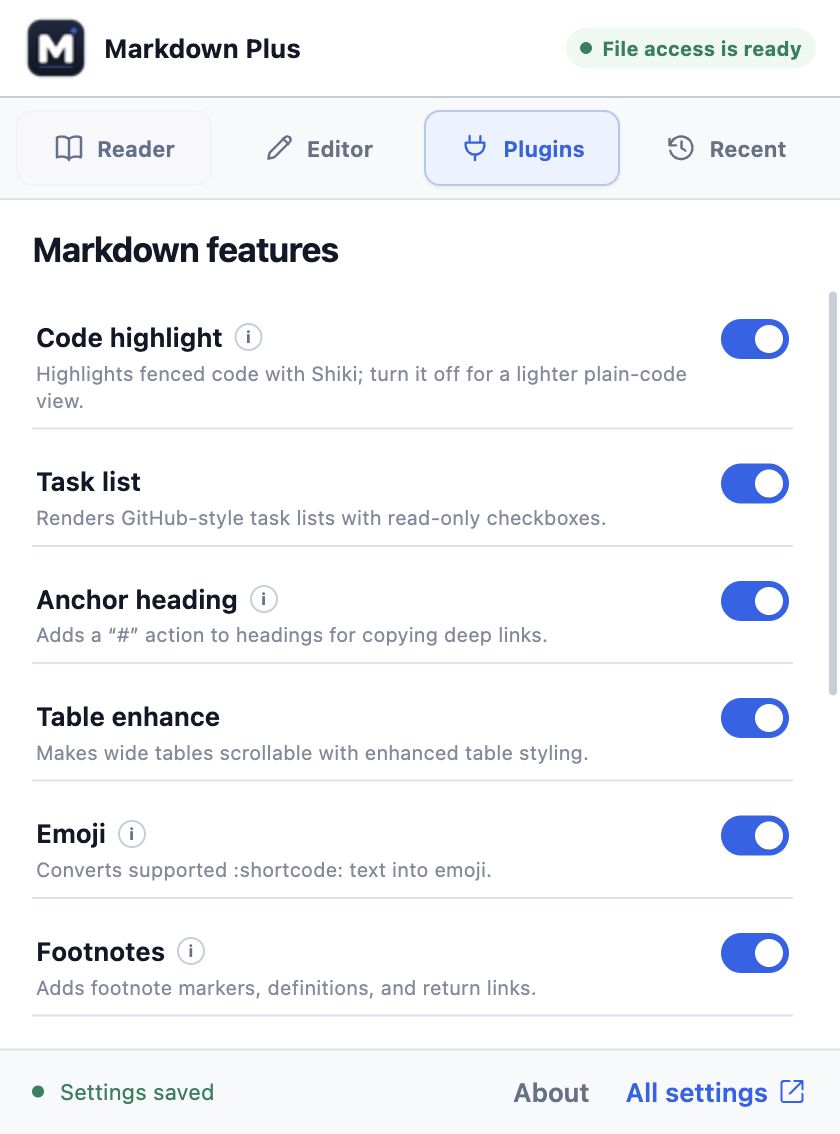
Markdown Plus goes beyond headings and paragraphs. Open the practice file, then try these features. All registered plugins are enabled by default; manage them in popup → Plugins.
 View full-size screenshot
Code & tables
Fenced code blocks support syntax highlighting and a copy control. Tables get a more readable presentation. Add a language after the opening code fence, such as javascript, for the matching code grammar.
Notes & references
Use GitHub-style alerts, footnotes, emoji and heading anchors in your notes. Task lists are displayed as read-only checkboxes: change the Markdown source to check or uncheck an item.
Math & colors
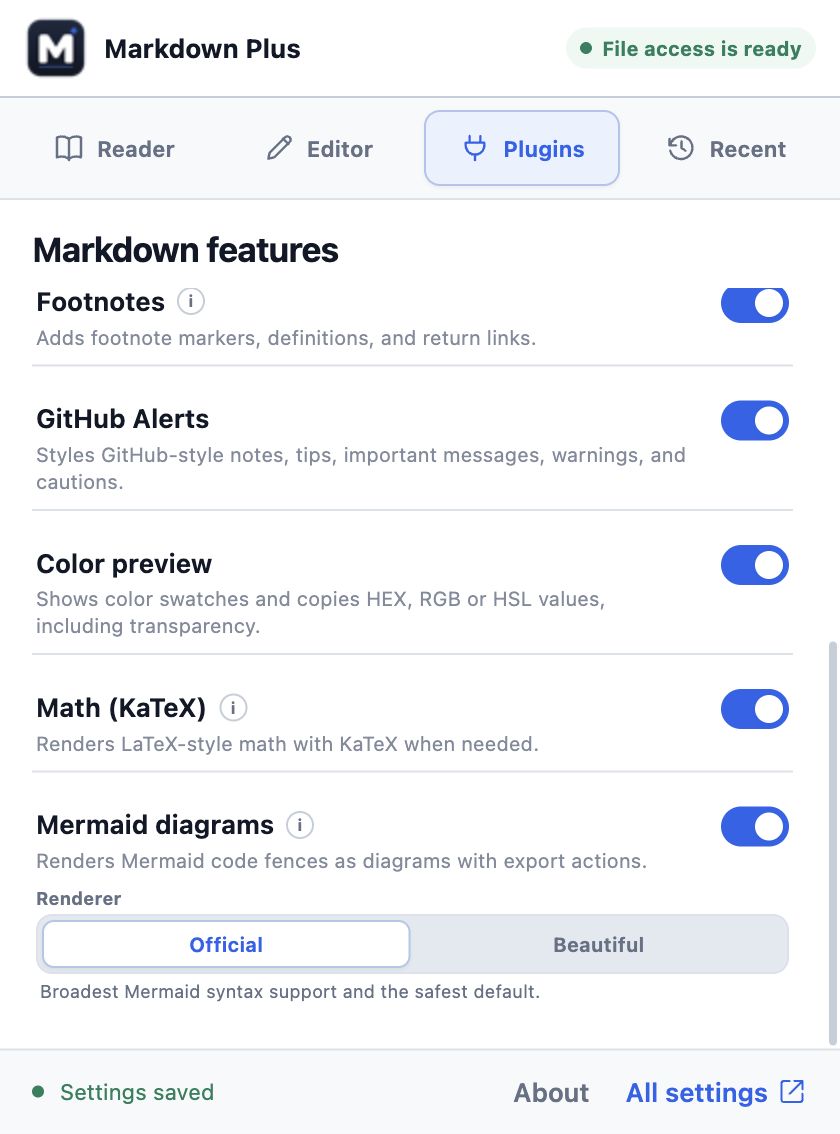
KaTeX renders inline and block formulas. Color preview adds swatches for supported color values; open a swatch to copy HEX, RGB or HSL. Plugin switches let you turn each feature on or off.
## A small plan

- [x] Open a Markdown file
- [ ] Try a new theme

> [!TIP]
> Keep your notes close to your code.

Inline math: $E = mc^2$
A useful color: #2563eb
Choose the features you use
 View full-size screenshot
 View full-size screenshot
Try it in the practice file: jump to “A diagram”, copy the JavaScript block, then find the formula and the #2563eb color value. If something appears as raw text, check the corresponding plugin switch.
Explore diagrams & images
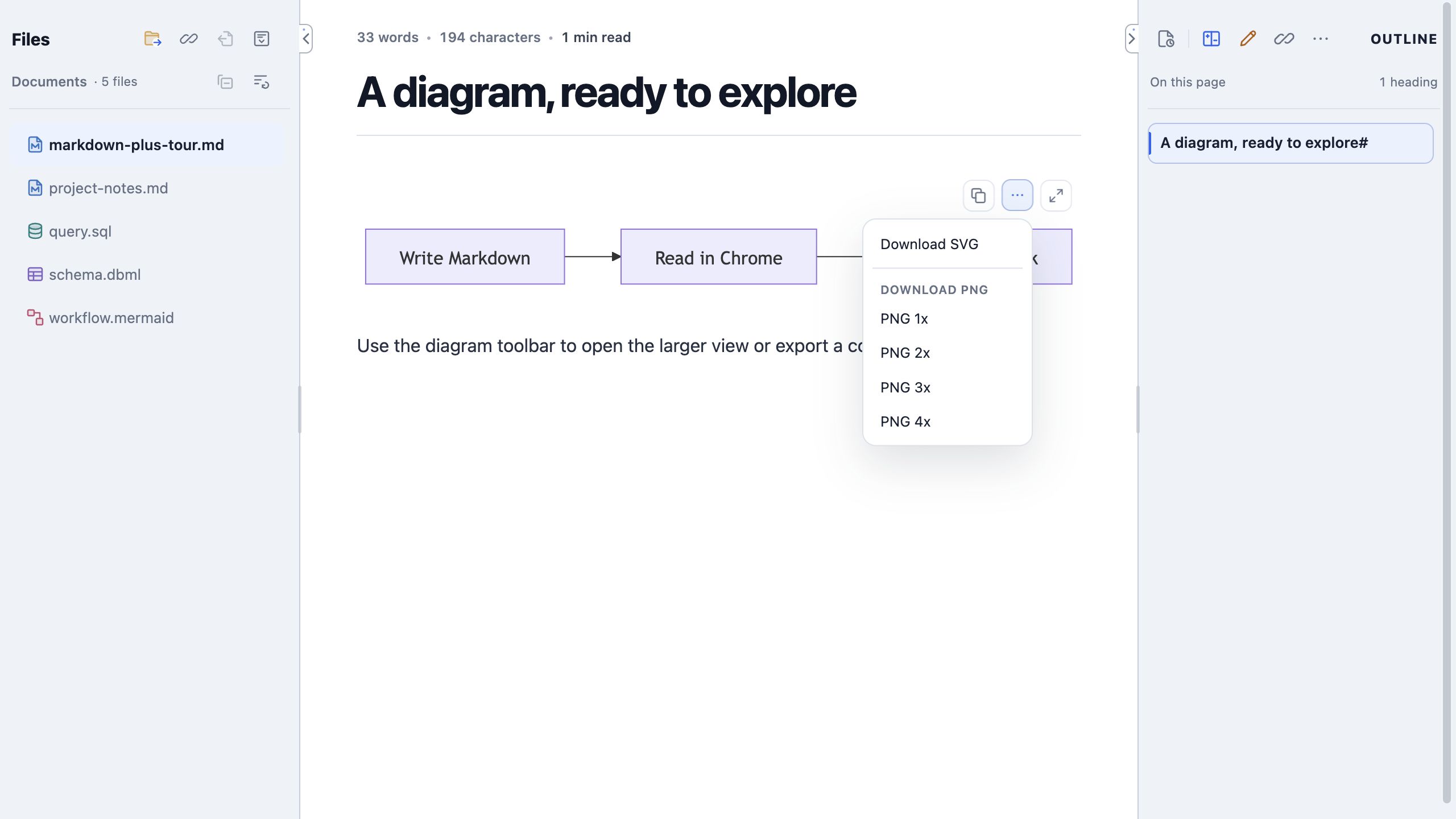
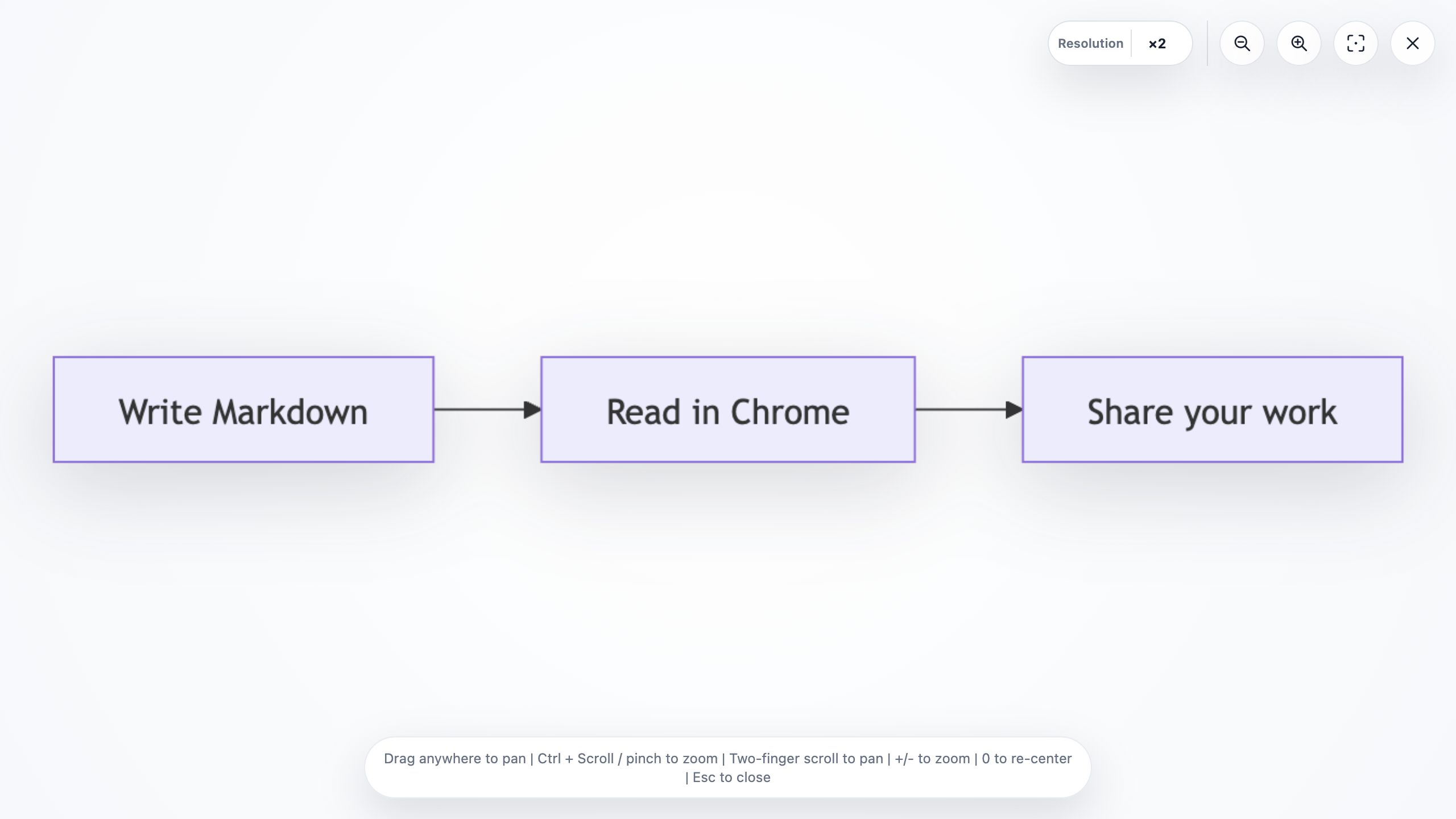
A Mermaid code block becomes a diagram when the plugin is enabled. You can also open a standalone .mermaid file through Files and switch between the rendered diagram and its source.
 View full-size screenshot
- Open a diagram or image in the larger viewer. Use fit, zoom and pan to inspect details; close the viewer to return to your document.
- For Mermaid, copy the source or export SVG or PNG. PNG export offers 1×–4× scales. Use SVG for vector artwork, or a larger PNG scale when you need more pixels.
 View full-size screenshot
In Mermaid and SVG zoom views, Resolution changes bitmap detail separately from zoom. Reveal its minus/plus controls by hovering, focusing or tapping the control. Levels increase in 0.25 steps from 1× up to 8×, bounded by the image’s size and memory limits. Maximum means this image cannot go higher. This only affects the open preview, not the source or exported file.
In popup → Plugins, choose Official for the broadest Mermaid syntax support, or try Beautiful for an alternative layout. If a diagram fails with Beautiful, switch to Official and check the source syntax.
Themes & backgrounds
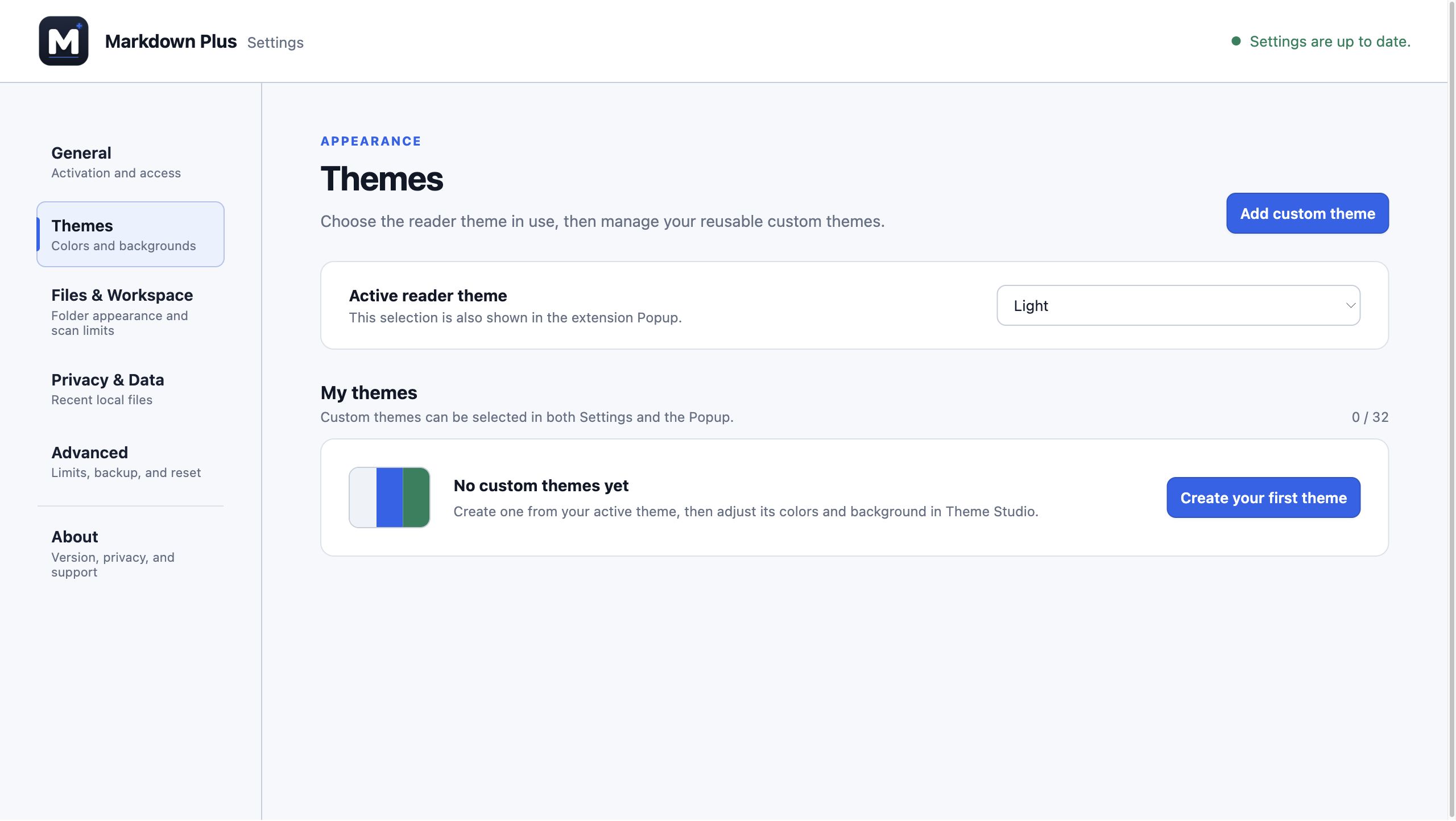
Choose a built-in theme from popup → Reader → Theme, or All settings → Themes → Active reader theme. Light, dark, high-contrast and colorful options share the same reader controls.
 View full-size screenshot
Create a custom theme
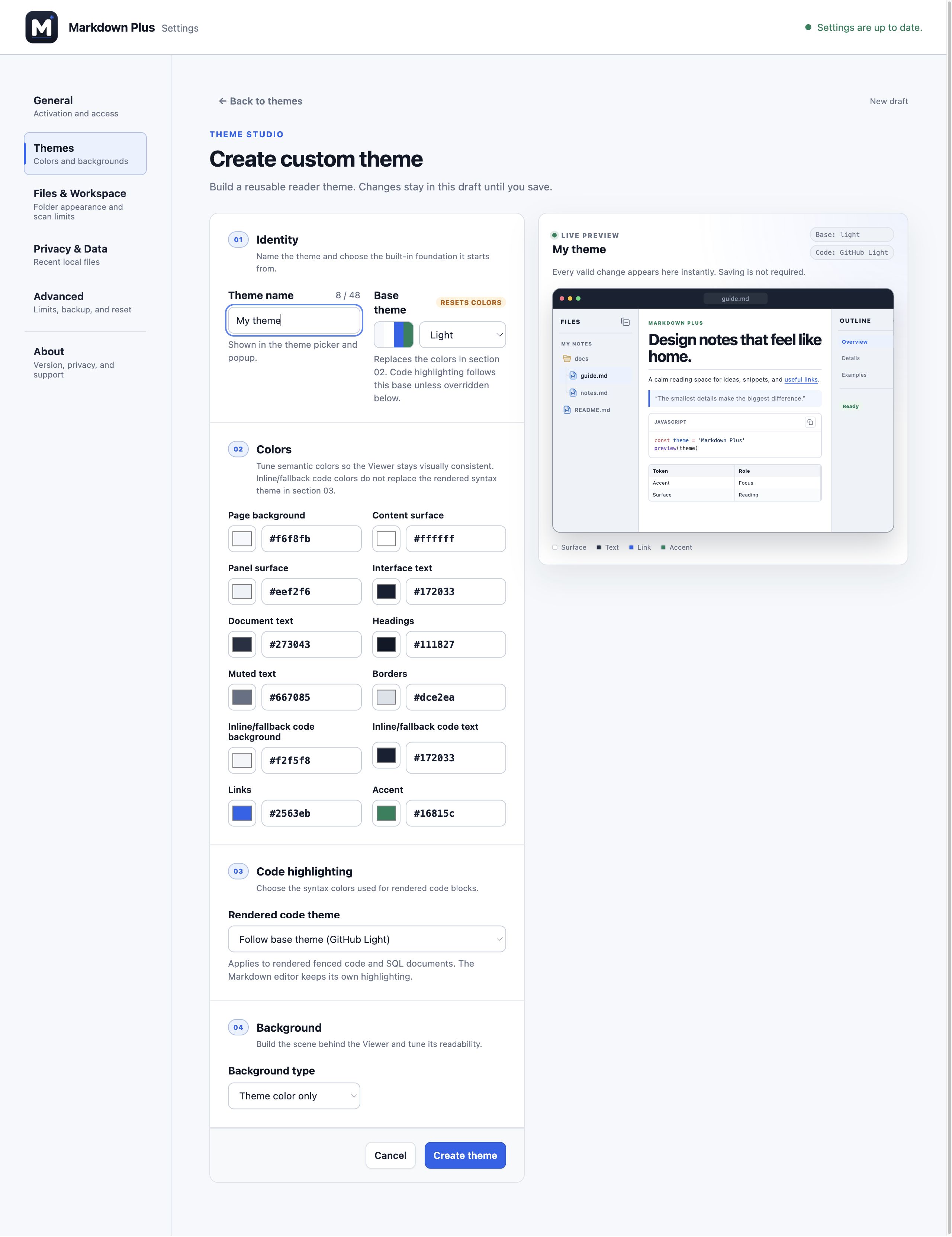
- Choose Add custom theme, give it a name and select a Base theme. Changing the base resets the draft color palette, so choose it first.
- Adjust page, document, panel, text, heading, link and code colors. Check the live preview as you go, including the contrast of secondary text.
- Under Code highlighting, follow the base theme or choose a bundled syntax theme. This changes rendered code colors, independently of the editor’s content.
- Choose a background, adjust its fit and dimming if needed, then select Create theme or Save changes. Draft changes are not saved until you confirm.
 View full-size screenshot
Choose your background
Keep the theme color, choose a solid scene, make a two-color gradient, or add a local PNG, JPEG, WebP, AVIF, GIF or APNG up to 5 MiB. Image controls include fit, position and repeat. Use Dimming to keep the document readable.
Motion offers Follow system, Animate and Still. Follow system respects reduced-motion preferences. Still hides an animated image background rather than freezing a frame.
Follow document changes
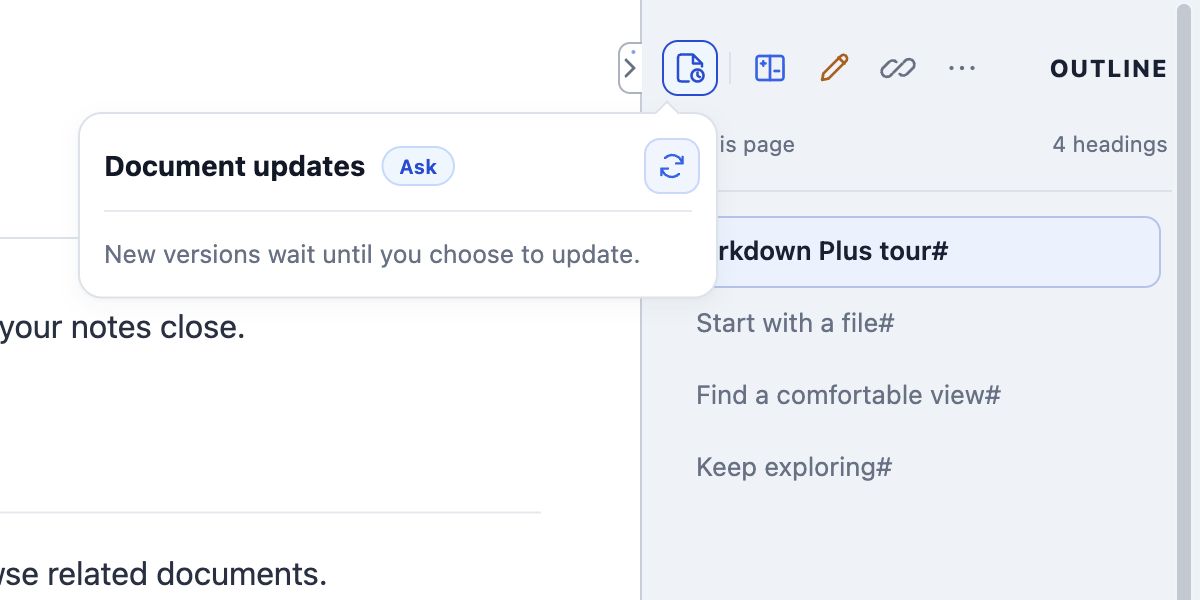
Editing in another app? Markdown Plus can detect a saved revision of the active document. Set your preferred behavior in All settings → General → Document updates.
 View full-size screenshot
| Mode | What happens |
|---|---|
| Ask — default | Checks for changes and waits for you to load the update. Choose this when you want to review before replacing the article. |
| Automatic | Loads a stable revision after you stop interacting, while trying to preserve your reading position. |
| Off | Stops automatic checks. You can still use Check now for a one-time check. |
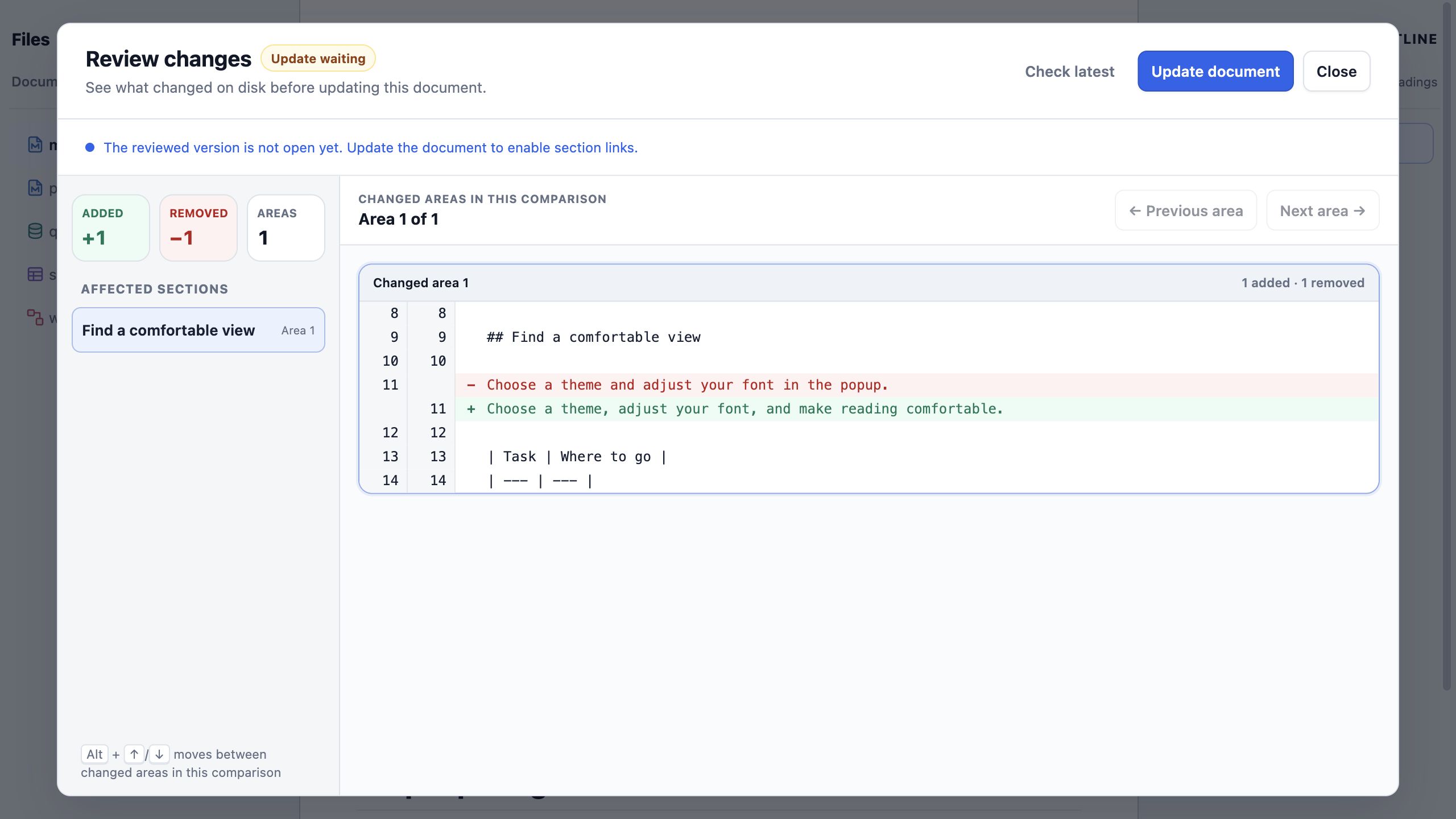
Use Document updates in the viewer to check or load a revision. When a comparison is available, choose View changes to see added and removed source lines. Markdown comparisons also show affected sections; images update without a source comparison.
 View full-size screenshot
An open comparison stays on the selected revision until you choose Review latest. Automatic mode can still update the article behind the comparison. Use Ask when you want control over when updates load.
Edit with live preview
Experimental · Opt in
The editor is off by default. It lets you edit Markdown beside a live preview and save to an explicitly verified local file.
- In popup → Editor, turn on Enable editor. Open a Markdown document, then choose Edit Markdown in the document actions.
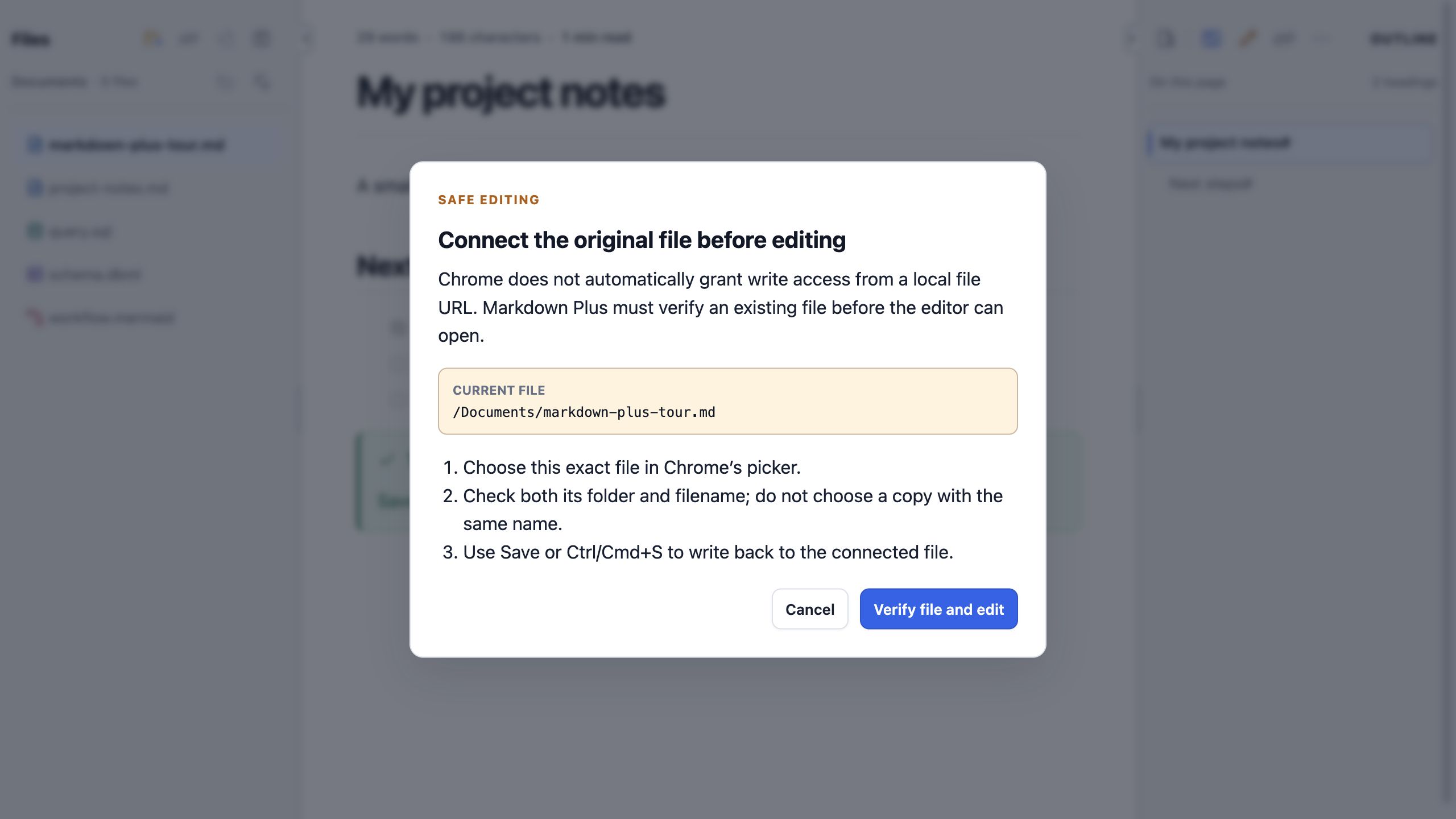
- When prompted, select the exact original file. Check both its folder and filename before granting write access. The extension needs this connection to save back to the original.
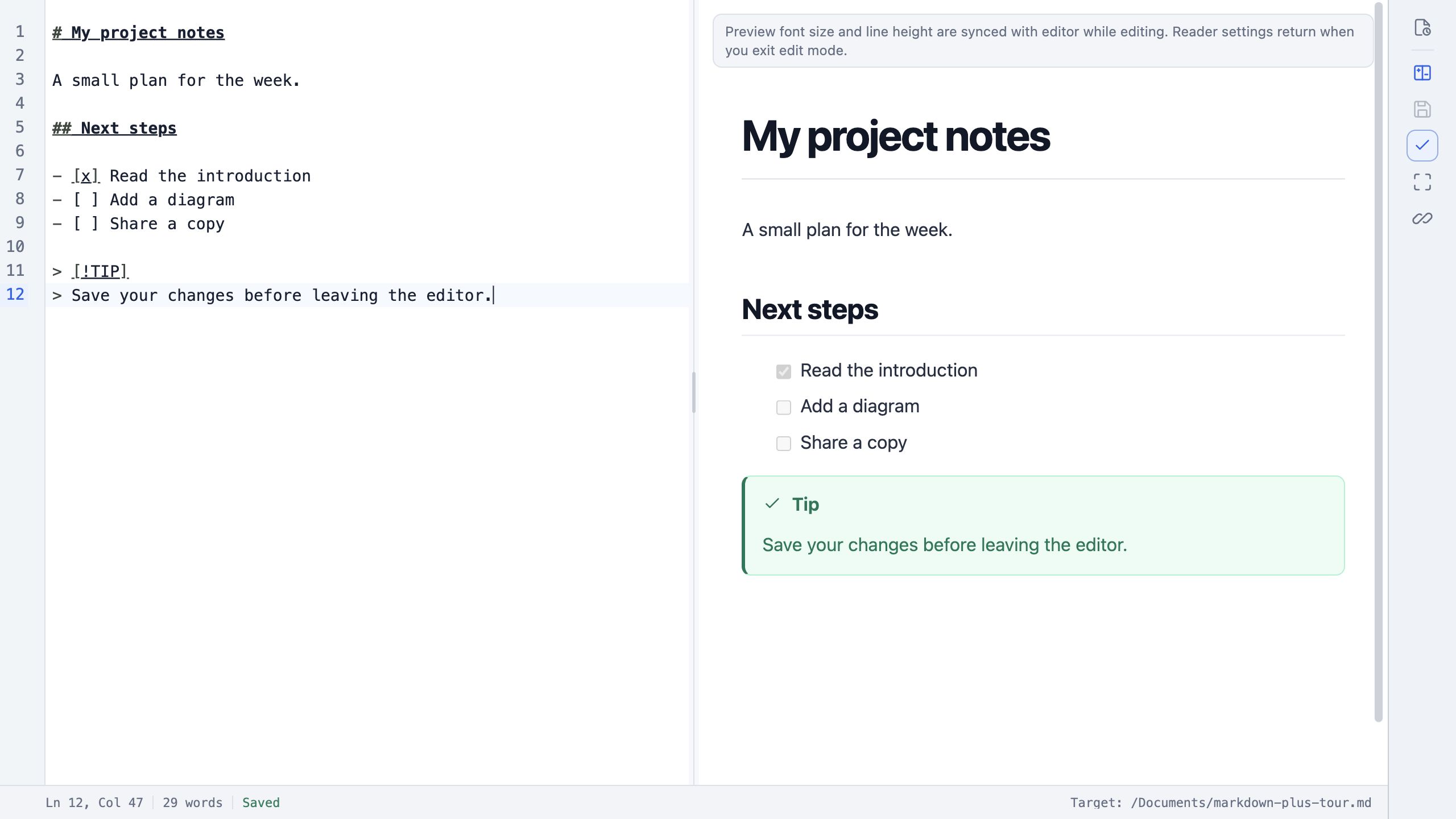
- Edit with the live preview, or use focus mode to hide the preview. Search and replace is available. Popup → Editor also controls font size, tab size, word wrap and line numbers.
- Choose Save or use Ctrl + S / ⌘ + S. Confirm the saved status before leaving. Exit edit mode before printing or exporting the document.
 View full-size screenshot
 View full-size screenshot
Print, export & share
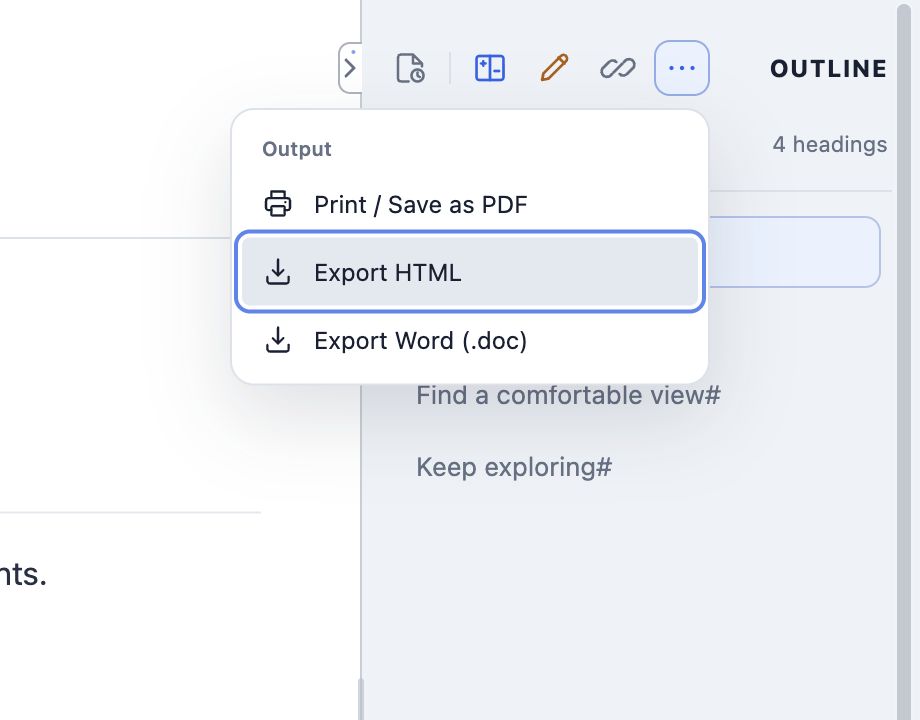
Use the document actions to take a readable copy elsewhere. Extra commands move into the overflow menu when the window is narrow.
 View full-size screenshot
Print or save a PDF
Choose Print / Save as PDF. In Chrome’s print dialog, choose your printer or Save as PDF, then check the preview and page settings before saving.
Export Markdown
For Markdown, choose Export HTML or Export Word (.doc). Depending on available space, these appear in Export document or the overflow menu. The .doc file is Word-compatible; diagram SVG/PNG exports use the diagram’s own menu.
Exit edit mode first. Documents are processed locally, but remote resources referenced by a document can contact their hosts. Some exported HTML resources may use a CDN; see the privacy policy for details.
Read the privacy policySettings, privacy & backups
Open popup → All settings for the full configuration. Most switches and selections save immediately; numeric limits use Save changes and theme drafts have their own save action. Always check the status message.
- General: language, activation, scrollbars, document statistics, update mode and file URL access status. Chrome’s extension Details page controls the permission itself.
- Files & Workspace: hierarchy guides,
.gitignoreexclusions, workspace restoration and scan limits. Depth 0 scans only the selected root. Scan changes take effect on the next scan or refresh. - Privacy & Data: enable recent-file history, change how many entries are retained or clear the list. Popup → Recent reopens local Markdown files. Clearing this history does not delete your files.
- Advanced: set the viewing size limit for standalone TXT, SQL, DBML and Mermaid files. It applies on the next open and does not apply to Markdown. This is separate from the 5 MiB document-update limit.
- About: find the installed version, compatibility details and support links. Include the version when reporting a problem.
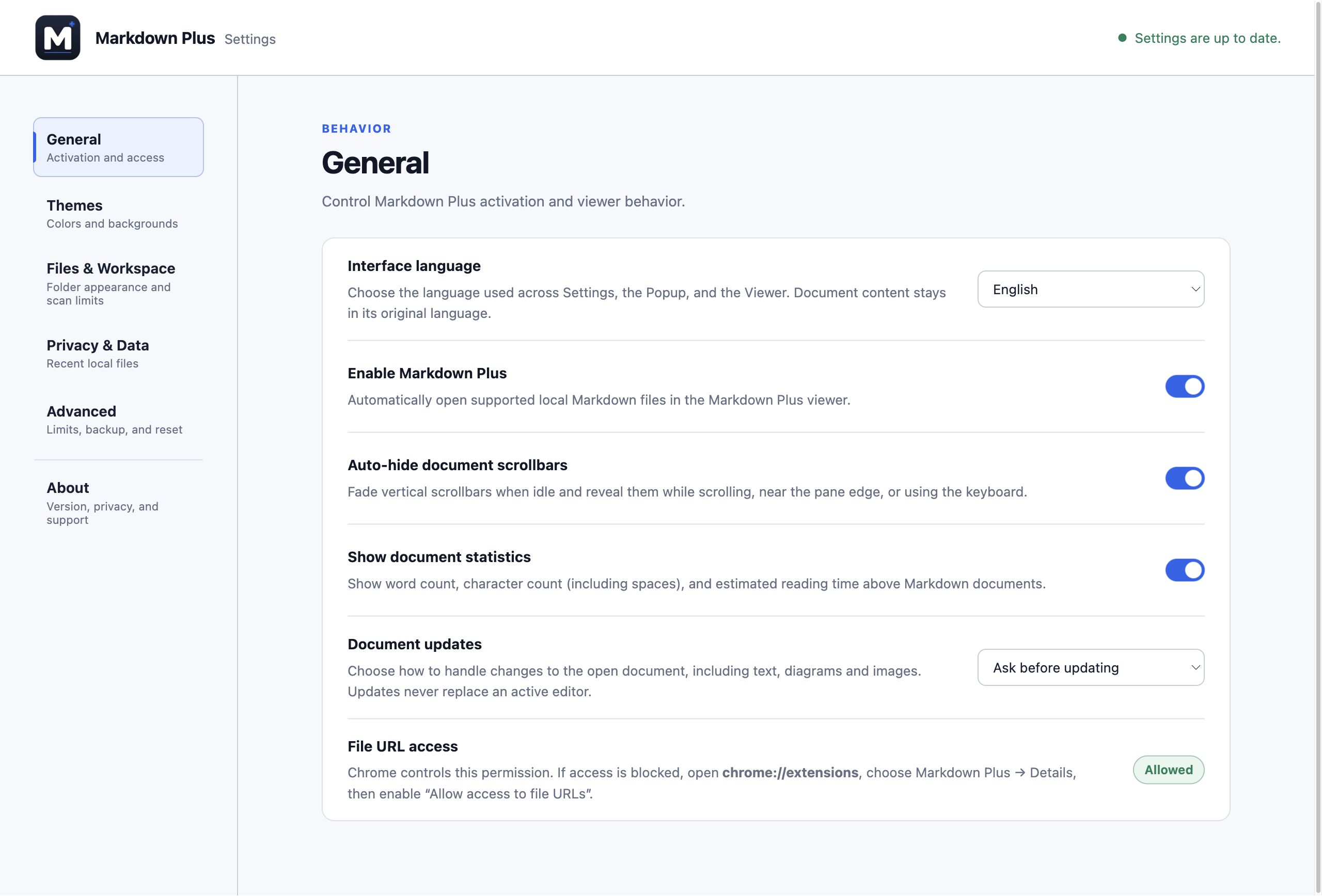 View full-size screenshot
Back up your preferences
In Advanced, choose Export JSON. To restore a backup, use Choose JSON under Import settings; the file is validated before saving. Backups include preferences and custom-theme definitions, but exclude documents, recent-file history and background images.
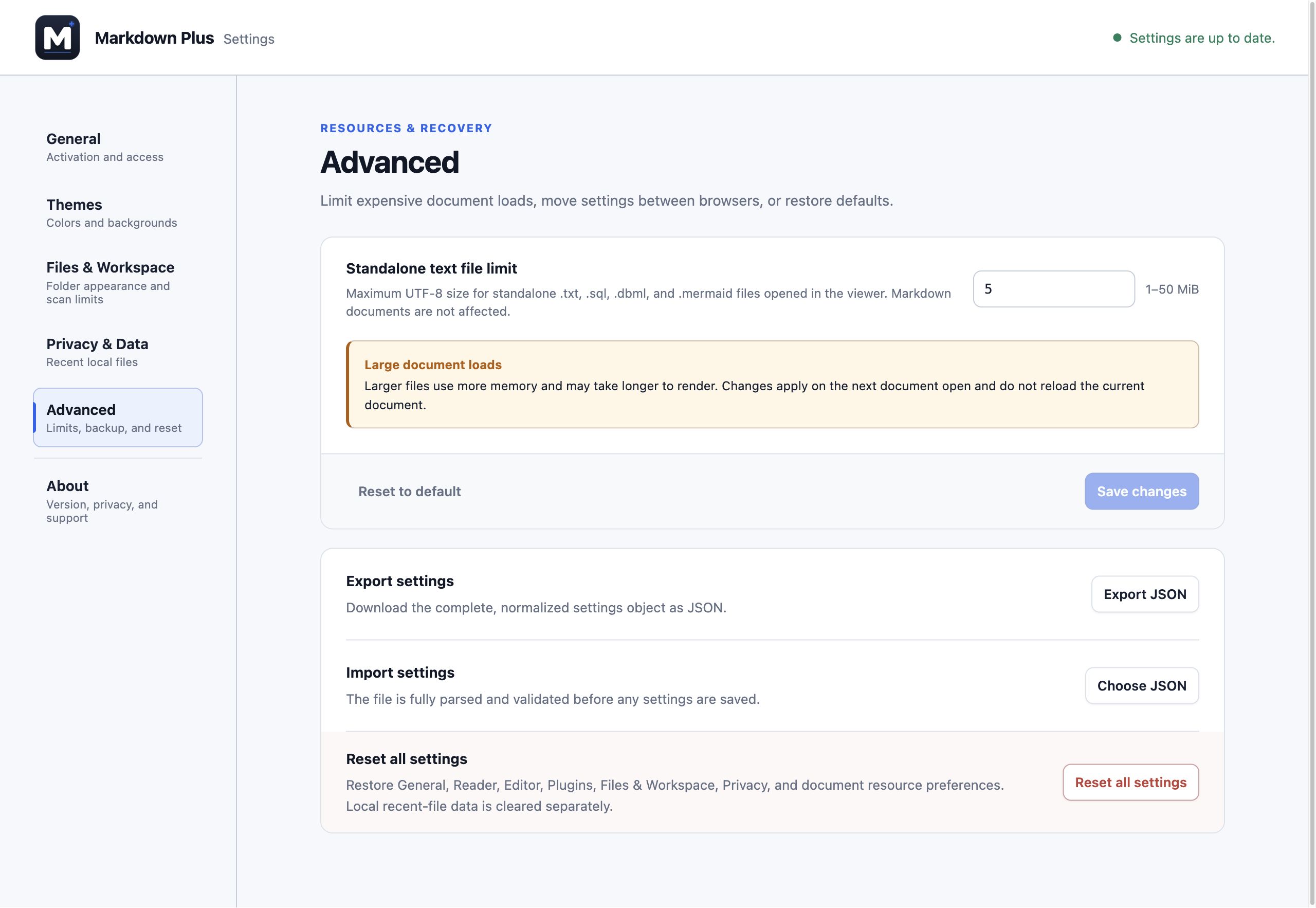 View full-size screenshot
Your documents are processed in your browser without a developer-operated upload service. Preferences may sync through Chrome; recent paths, editor file connections and background images stay on the device. Changing the website theme only changes this website.
Troubleshooting
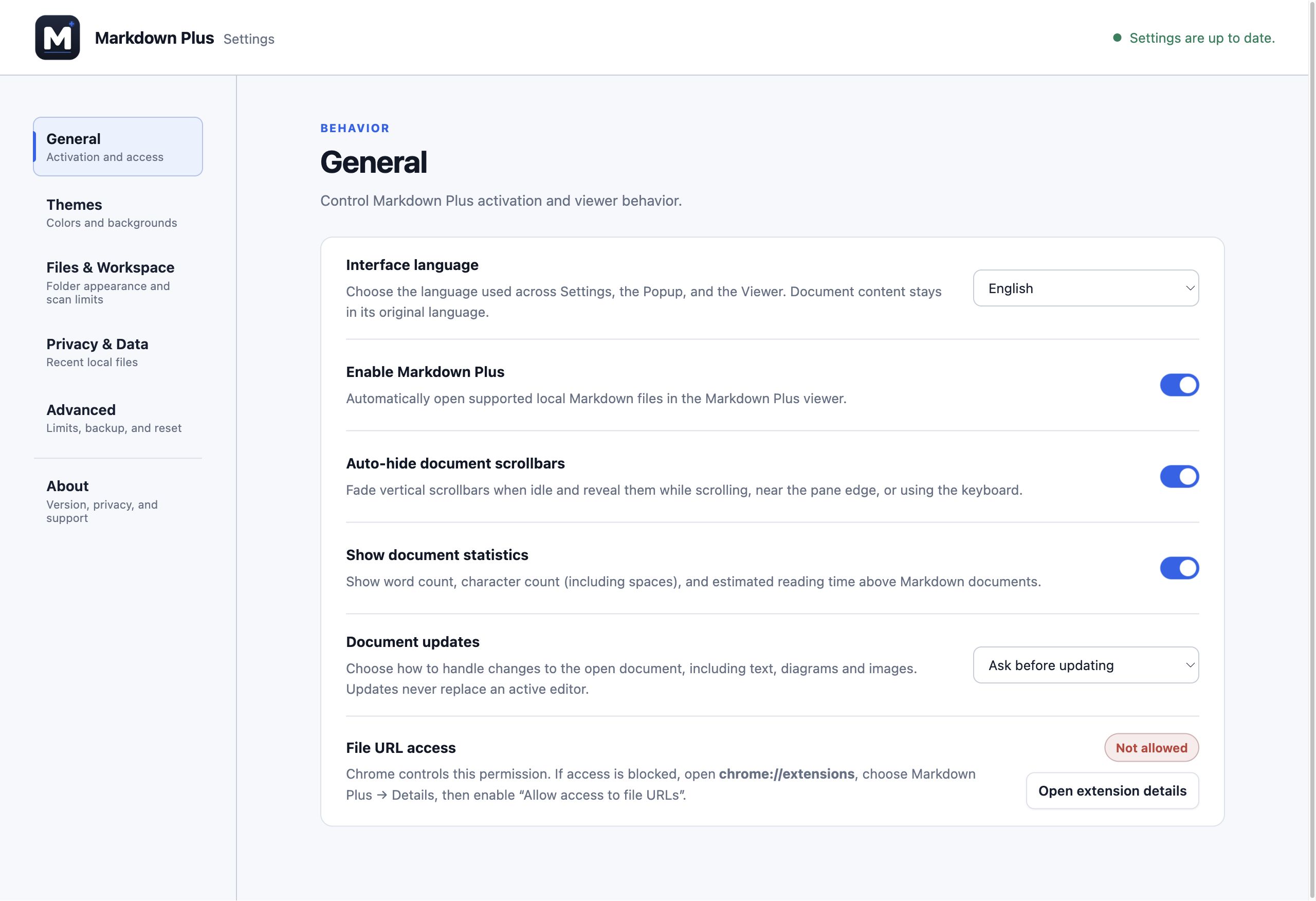 View full-size screenshot
My Markdown still opens as plain text.
Enable Allow access to file URLs in Chrome → Extensions → Markdown Plus → Details. Check All settings → General → Enable Markdown Plus, verify the .md/.markdown/.mdown/.mdc extension, then reload the tab.
Can I use it on a website or open SQL directly?
The extension activates on local Markdown files. Download a remote Markdown file and open the local copy. For SQL, DBML, text, Mermaid and images, first open Markdown, then use Files to select the other document.
Files are missing from the tree.
Check .gitignore and scan depth/file/folder limits in Files & Workspace, then choose Refresh file list. Grant folder access again if requested. A recent file that moved must be reopened from its new location.
I saved elsewhere, but the document looks unchanged.
Use Document updates → Check now and load the update in Ask mode. Keep the tab visible and check the 5 MiB limit. Refresh file list only updates the tree. For a snapshot workspace, select the folder again.
Editor Save reports a conflict.
Another app changed the original file after editing began. Copy any draft you want to keep, then review the disk revision and reopen the correct file. Save will not force an overwrite. Check write permission if Chrome reports an access error.
My background is missing on another device.
Background images do not sync and are excluded from JSON backups. Edit the custom theme on that device, choose the original image again and save the theme.
A setting will not save.
Read the save status for the specific error. Retry after a moment if changes were too frequent. If Chrome reports full settings storage, reduce custom-theme data or remove unused themes, then retry.
Still stuck? Include your Chrome version, extension version, the steps you tried and a small example with private content removed when opening an issue.
Get help on GitHubReady for your own documents.
Open a local Markdown file, choose your favorite theme, and keep this guide nearby for the next feature you want to try.
Back to the first steps